
Documentation
User Guide
Fresh Pot one screen at a time: from the first bag on your counter to the dial-in card, imports, trends and backups. New here? Read it top to bottom. Looking for a fix? Try Help; for quick answers, the FAQ.
1. First launch
Fresh Pot opens with one screen and three ways in. There's no sign-up and nothing to configure: the journal lives on your phone from the first tap.
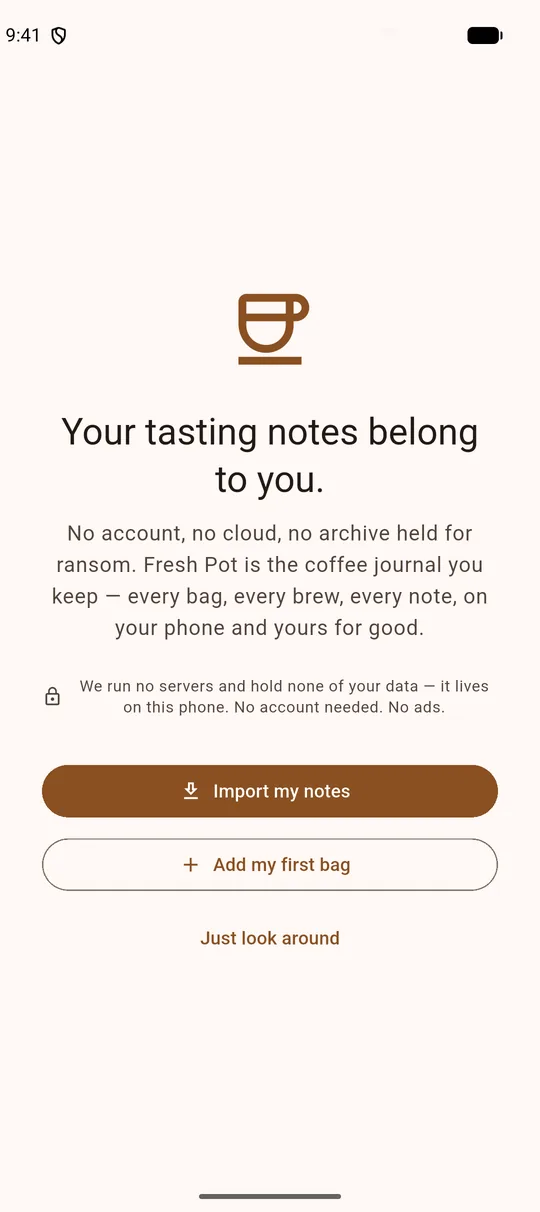
- Import my notes: you already keep notes in a spreadsheet or another app's export. Jump to Importing from a spreadsheet.
- Add my first bag: opens the bag form for the coffee on your counter. See Adding a bag.
- Just look around: goes straight to the app. Everything above is still a tap away.
The app has three tabs along the bottom: Beans (your bags and their brews), Gear (grinders, brewers, kettles), and Trends (your brewing year, with Pro).
2. The Beans tab
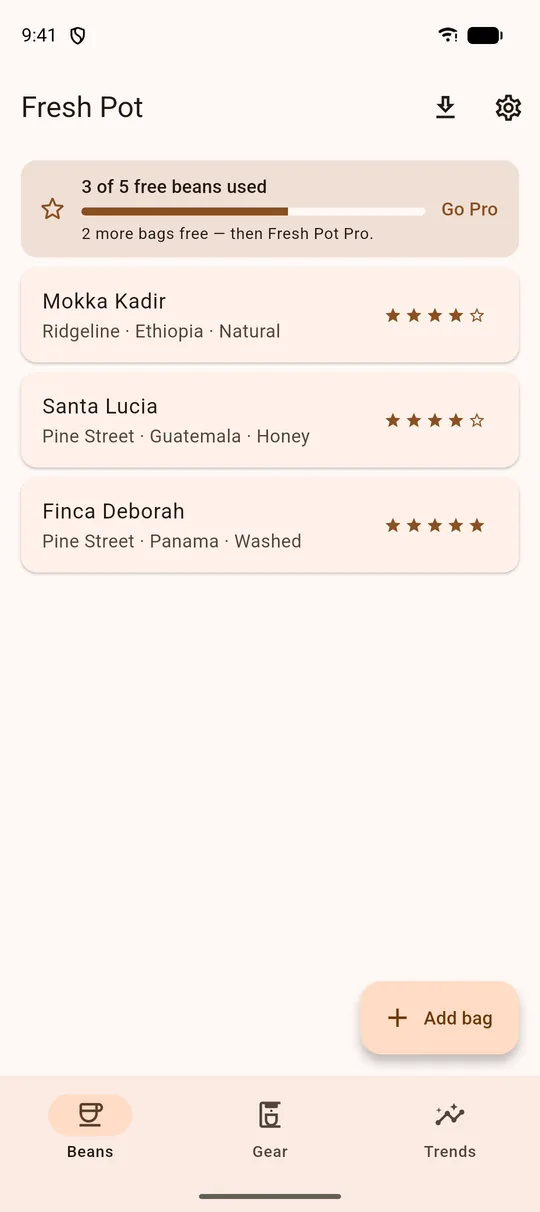
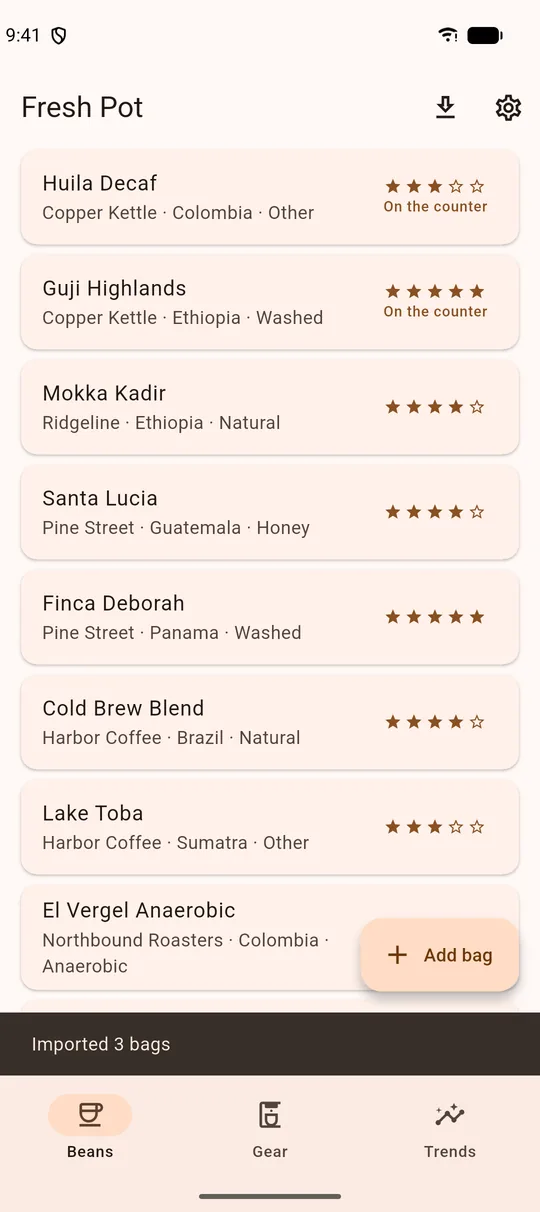
The Beans tab is the journal's front page: every bag you've logged, one card each, with the roaster, origin, process and your star rating.
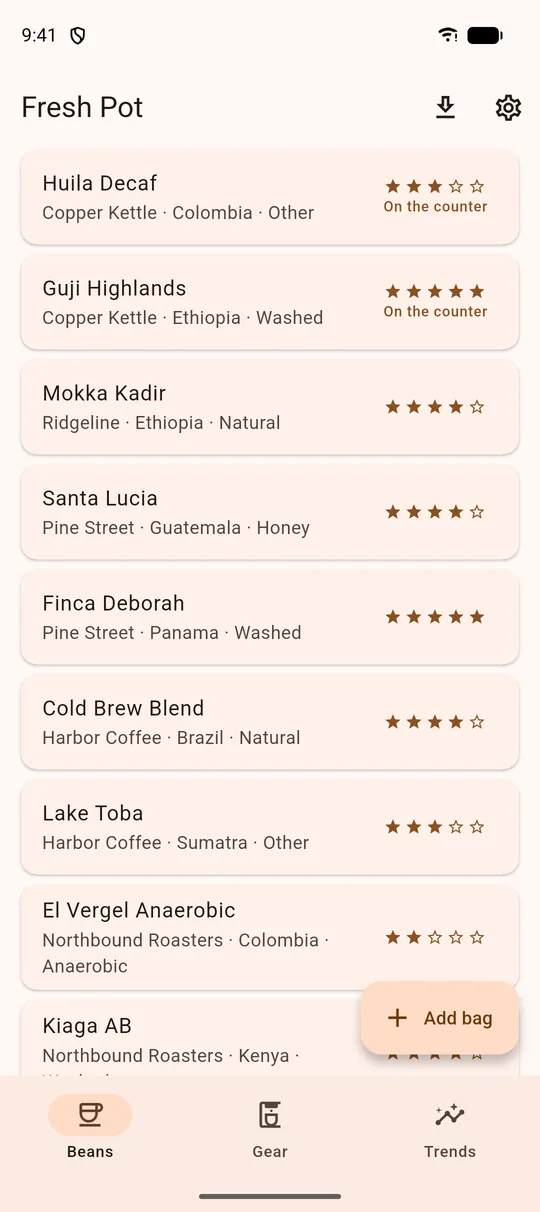
- On the counter: bags you've opened and haven't finished float to the top of the list, so the coffee you're actually brewing is always first.
- Stars: the card shows the bag's rating (your first impression, set on the bag itself).
- Tap a card to open the bag: its details, the dial-in card, and every brew you've logged from it.
- In the top bar, the download icon starts an import and the gear icon opens Settings.
3. Adding a bag
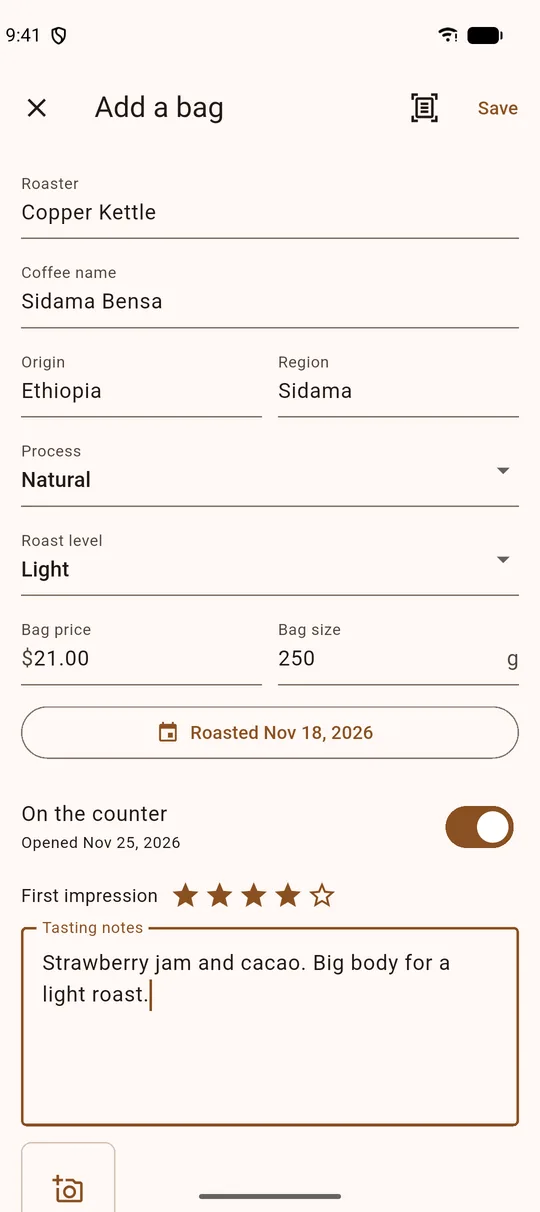
- On the Beans tab, tap Add bag.
- Type the Roaster and the Coffee name. These two are the only required fields; Save waits until both are filled.
- Add whatever else you know (origin, process, price, roast date). Everything past the first two fields is optional and can be filled in later.
- If you've opened the bag, flip On the counter on.
- Give it a First impression rating and a line of tasting notes if you like, then tap Save.
| Field | What it's for |
|---|---|
| Roaster · Coffee name | Required. Together they identify the bag (and they're how an import spots a bag you already have). |
| Origin · Region | Country and region, as you'd say them. Origin feeds Rating by origin in Trends. |
| Process | Washed, Natural, Honey, Anaerobic, or Other. Pick Other and a box appears for your own word (carbonic maceration, wet-hulled, anything). |
| Roast level | Light, Med-light, Medium, Med-dark, or Dark. |
| Bag price · Bag size | Dollars and grams. The bag page shows them as "$19.50 / 250g", and priced bags feed the Bag prices chart in Trends. |
| Roast date | Tap the button and pick the date off the calendar. |
| On the counter | Flip it on when you open the bag; the app records today as the opened date. Flip it off when the bag's done and today becomes the finished date. |
| First impression | One to five stars: the bag's rating, shown on its card and used in Trends. |
| Tasting notes | What the cup actually tastes like to you, in your own words. |
| Photos | Tap the camera tile at the bottom to take a photo or pick one from your gallery. Photos stay on your phone and travel inside a backup. |
4. Scanning a bag label (Pro)
Instead of typing, let Fresh Pot read the bag. Scanning is part of Fresh Pot Pro; on the free tier, the scan button opens the Pro sheet first.
- On the Add a bag (or Edit bag) screen, tap the scan icon in the top bar, next to Save.
- The camera opens. Frame the front of the bag and take the shot. If the camera doesn't open, allow camera access for Fresh Pot in Android Settings.
- Fresh Pot reads the label on your phone and shows The label says: the roaster, coffee, origin, process and roast date it found, exactly as printed.
- Tap Use these to fill the form, or Cancel to leave it as it was.
- Check the fields, change anything that's off, and tap Save. Nothing is saved until you do.
The scanner only reports what's printed on the bag, and only the fields it could find. It never fills in a value the label doesn't show. The reading happens entirely on your phone; the photo isn't uploaded anywhere.
If it can't make anything out, you'll see "No readable text found on that label" or "Couldn't read that label — try a closer, straighter shot." Fill the frame with the label, flatten the bag if you can, and avoid glare from overhead lights.
5. Your gear and grinders
The Gear tab is your bench: grinders, brewers, machines, kettles and scales, each with a line of notes. Add your grinder first. Grind settings are only meaningful with the grinder next to them, and every grinder you add here shows up in the brew form's Grinder picker.
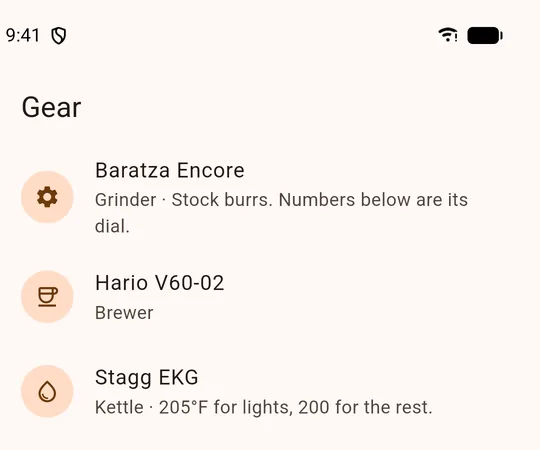
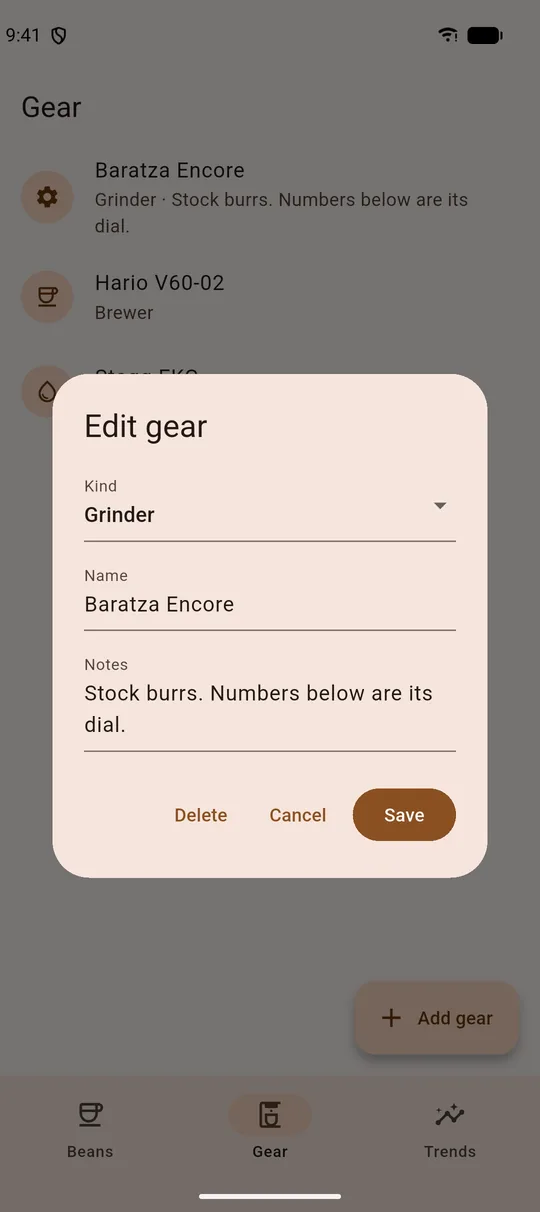
- On the Gear tab, tap Add gear.
- Choose the Kind: Grinder, Brewer, Machine, Kettle, Scale, or Other (with your own word).
- Give it a Name (required) and, if you like, Notes: burrs, mods, quirks, the temperature you use.
- Tap Save. To change or remove it later, tap it in the list and use Save or Delete.
6. Logging a brew
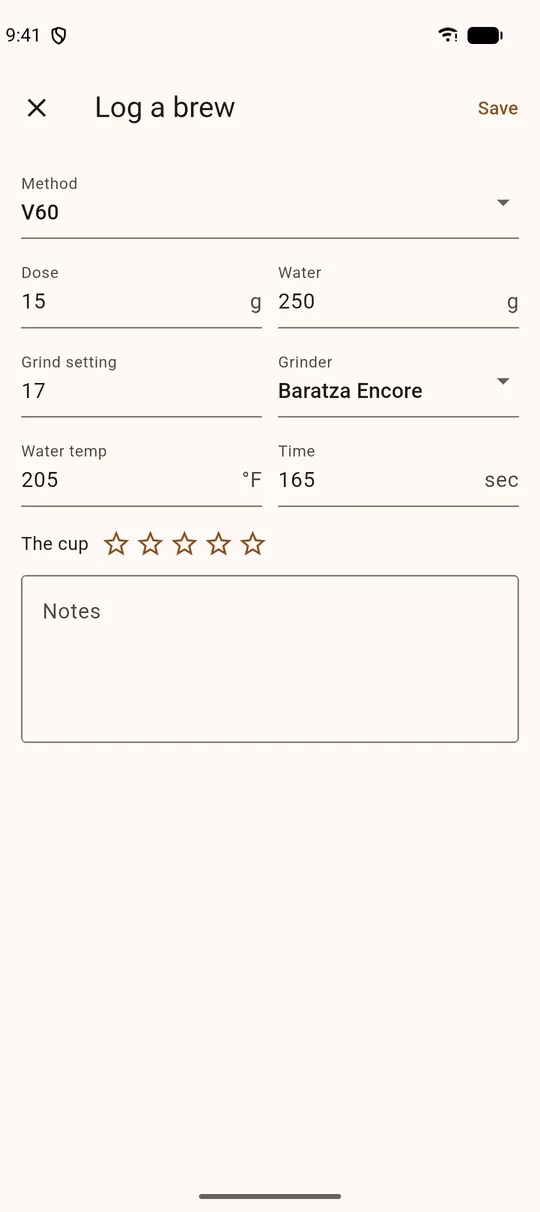
Brews belong to a bag. Open the bag from the Beans tab and tap Log a brew.
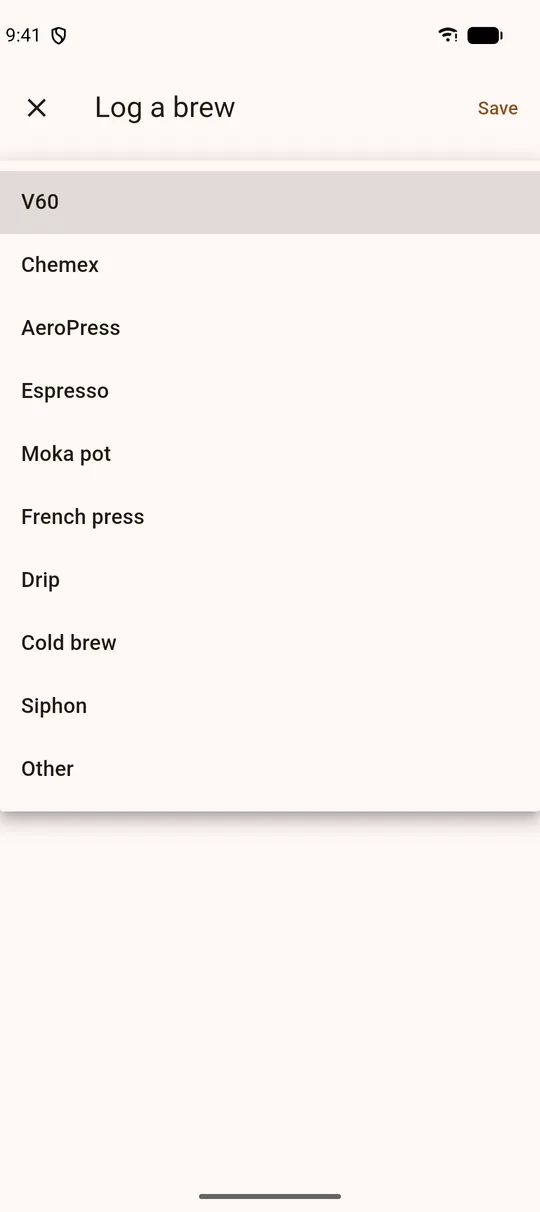
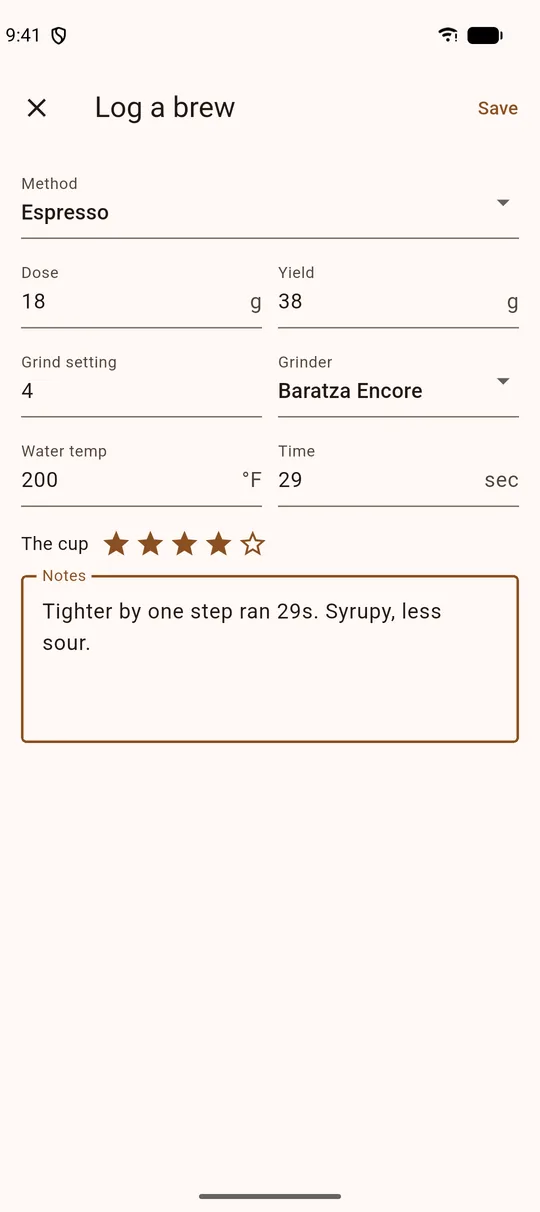
- Choose the Method: V60, Chemex, AeroPress, Espresso, Moka pot, French press, Drip, Cold brew, Siphon, or Other (type your own name for it).
- Enter the Dose in grams, then the Water in grams. For Espresso, the second box becomes Yield: the weight of the shot in the cup.
- Enter the Grind setting as your grinder labels it (a number, a click count, anything) and pick the Grinder it's on.
- Add the Water temp in °F and the Time in seconds (2:45 is 165).
- Rate The cup and jot what changed or what you'd change next time in Notes. Tap Save.
Every field is optional, so log as much or as little as you measure. Fresh Pot works out the ratio for you (water, or espresso yield, divided by dose) and shows it the way it's said at the bench: 15 g of coffee to 250 g of water reads 1:16.7. If the dose or water is missing, no ratio is shown; it's never guessed from partial numbers.
Each new brew is stamped with the moment you save it, so log the cup while it's in front of you.
7. Brew it again
Once a bag has a brew, its page shows a Brew it again button above Log a brew. Tap it and the form opens with the last brew's method, dose, water, grind, grinder, temperature and time already filled in. Only the rating and notes start empty: today's cup earns its own.
8. The dial-in card
The dial-in card is the payoff for logging. On every bag page, Fresh Pot pins the recipe from your best-rated brew of that bag: method, dose, water or yield, ratio, grind, temperature and time, on one line you can read at the bench. If two brews tie, the newer one wins.
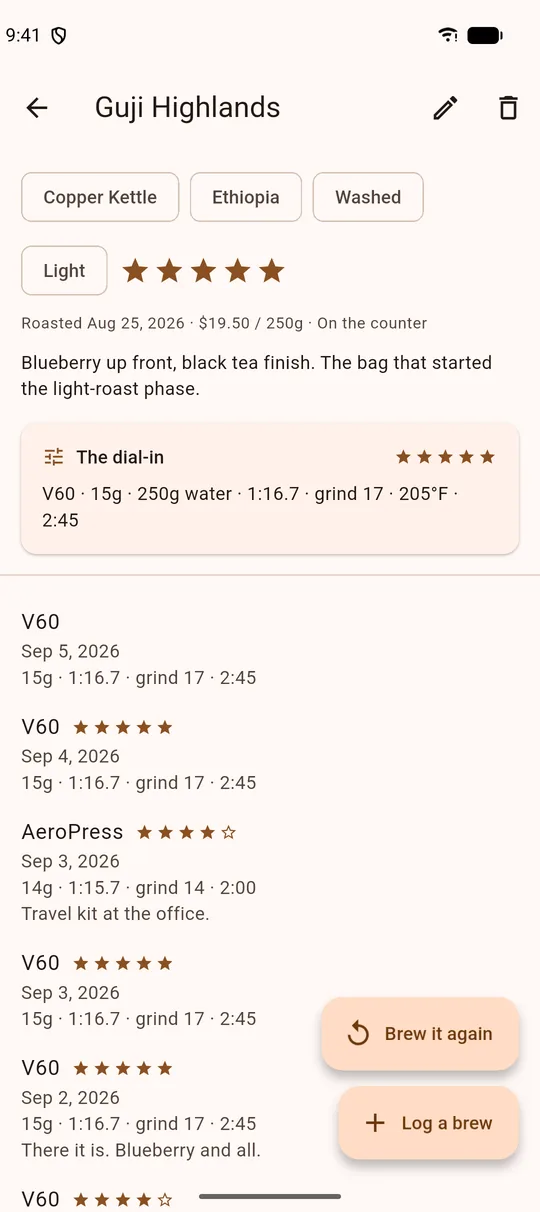
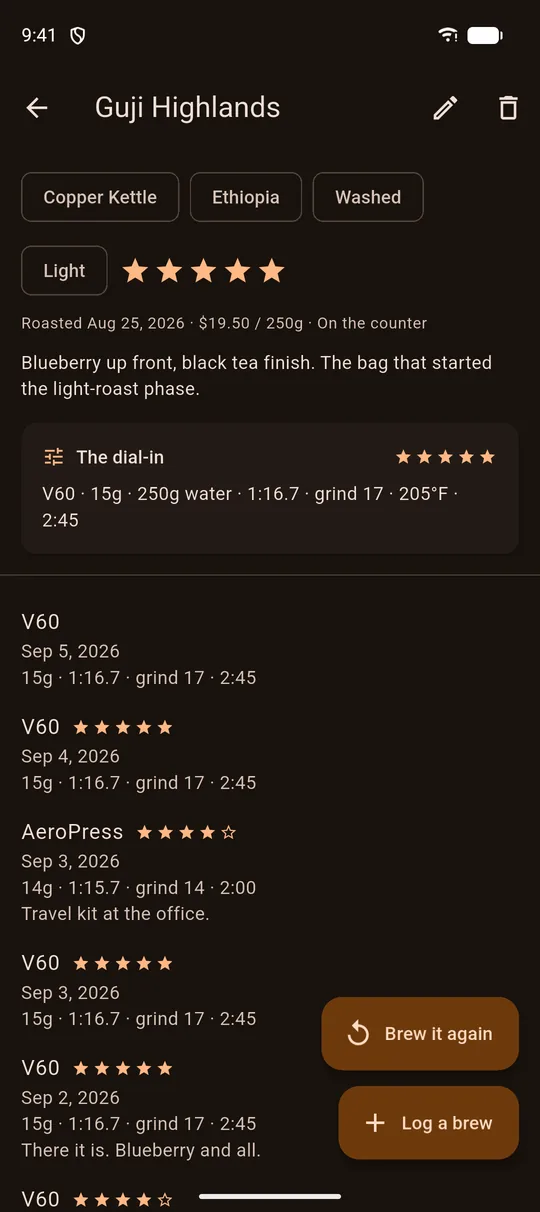
The card appears as soon as one brew of the bag has a rating, and it updates itself whenever a better-rated cup lands. Below it, the brew history lists every cup with its date, dose, ratio, grind, time and notes.
9. Editing and deleting
- Edit a bag: open it and tap the pencil in the top bar. Everything on the bag form can be changed, including photos.
- Delete a bag: open it and tap the trash can. Fresh Pot tells you how many brews go with it and asks you to confirm. This can't be undone, so make a backup first if you might want it back.
- Edit a brew: tap it in the bag's brew history to reopen it with everything you logged, then Save. Its original date is kept.
- Edit or delete gear: tap it on the Gear tab.
10. Importing from a spreadsheet
Switching from a spreadsheet or another app? Bring your notes with you. Importing is free; on the free tier it fills your five free bags and tells you how many rows were left over.
- Export your notes as a .csv file (most spreadsheets and coffee apps can) and put it somewhere your phone can reach: Downloads, Google Drive, or an email attachment you've saved.
- Tap the download icon at the top of the Beans tab (or Import my notes on the first screen) and choose the file.
- Fresh Pot shows how many rows it found and matches your columns to its fields: coffee name, roaster, origin, region, process, roast date, bag price, rating (1–5) and tasting notes. Check each one and change any that it matched wrongly; set a field to — to skip it.
- Tap Import. A message at the bottom says how many bags were added.
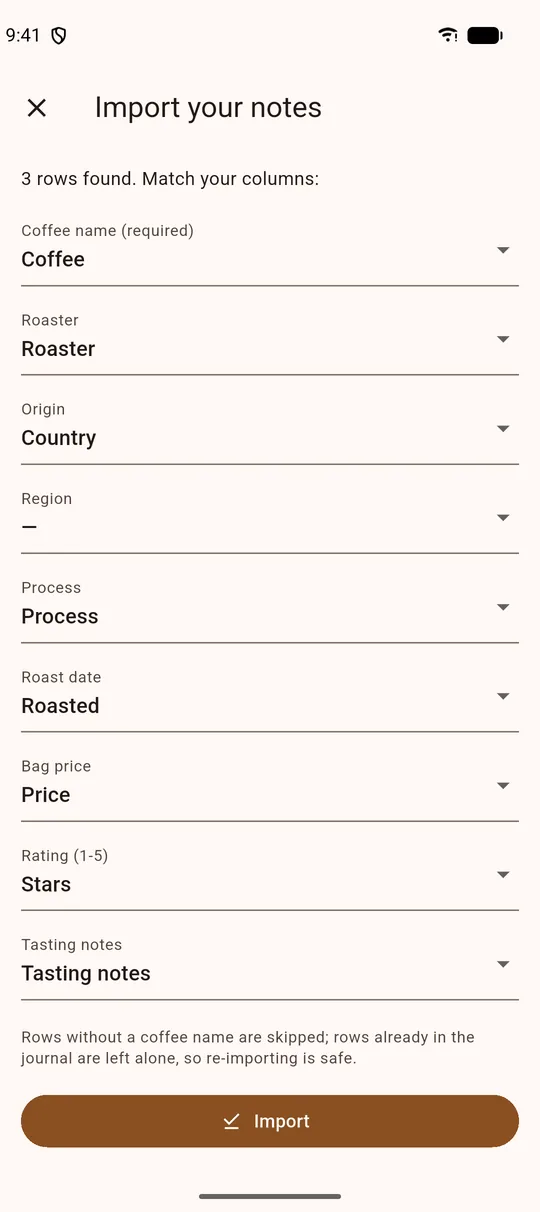
- Only the coffee name is required. Rows without one are skipped and counted in the summary. A row with no roaster is saved with "—" as the roaster.
- Re-importing is safe. A row whose roaster and coffee name match a bag you already have (ignoring capital letters) is left alone, so importing the same file twice adds nothing the second time.
- Prices like $18.00 or 18 both work. Ratings must be whole numbers from 1 to 5; anything else is left blank. A process Fresh Pot doesn't recognize is kept in your own words under Other.
- The importer brings in bags and their notes. Brews are logged in the app.
11. Trends (Pro)
The Trends tab turns the journal into your brewing year. It's part of Fresh Pot Pro; on the free tier the tab explains what's there and still offers Restore a backup.
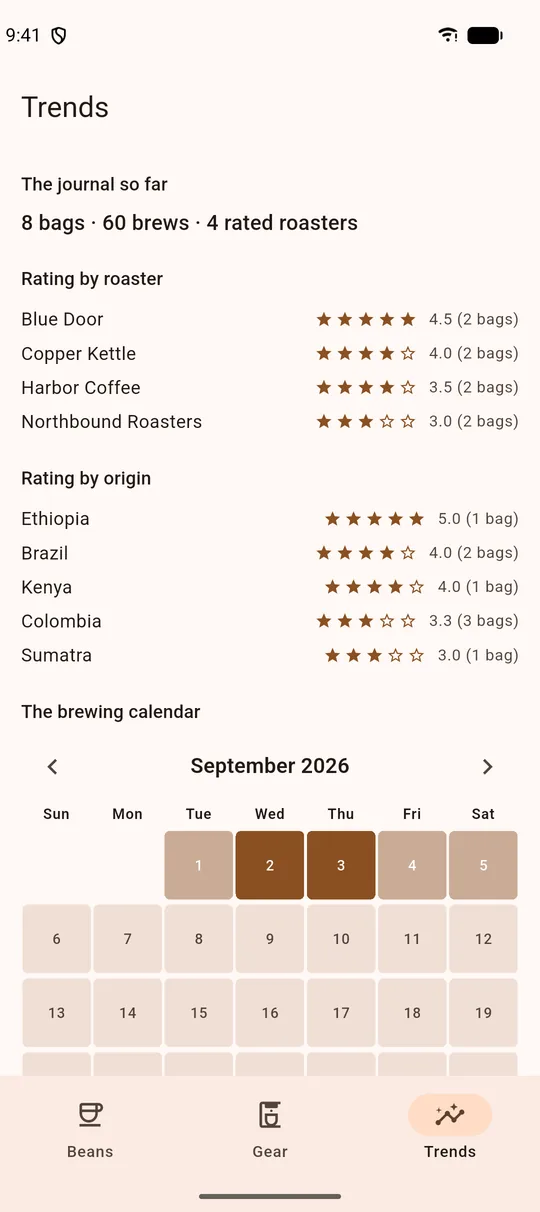
- The journal so far: how many bags, brews and rated roasters you've logged.
- Rating by roaster and Rating by origin: the average of your bag ratings, best first, with how many bags each average comes from.
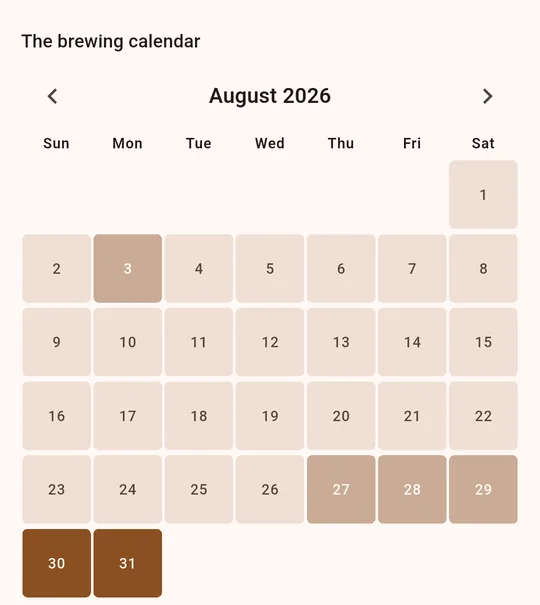
- The brewing calendar: one month at a time; use the arrows to move between months. Days with one brew are shaded lightly, days with two or more in full.
- Bag prices: the price of each priced bag, in the order you added them. The line appears once three bags have a price.
- How the cups get made: how many brews you've logged with each method.
12. Export and backup (Pro)
Your notes are yours to take out. At the bottom of the Trends tab, under Your notes, portable:
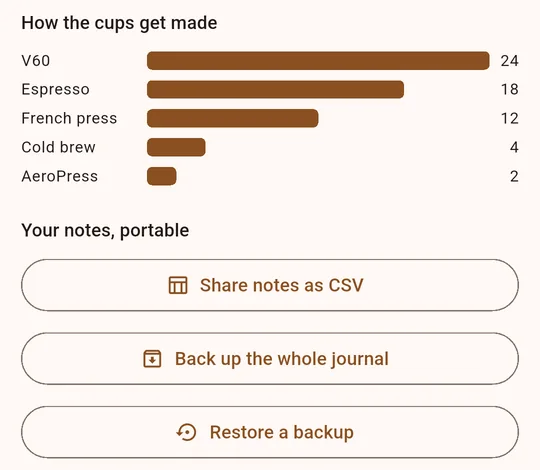
- Share notes as CSV creates a spreadsheet of every bag (roaster, name, origin, region, process, roast level, roast, opened and finished dates, price, bag size, rating and tasting notes) and opens your phone's share sheet so you can send it to Drive, email, or anywhere else.
- Back up the whole journal creates one .zip file with everything (bags, brews, gear, ratings, notes and bag photos) and opens the share sheet. Save it somewhere off the phone, like Google Drive or your email.
Your journal lives only on your phone. We don't have a copy and can't recover it, so if the phone is lost or reset without a backup file, the journal goes with it.
13. Restoring a backup
Restoring is never locked, even on the free tier.
- Open the Trends tab and tap Restore a backup (it's on the free-tier Trends screen too).
- Choose the .zip backup file.
- Confirm. The journal on this phone is replaced with the backup: beans, brews and gear. Anything you logged on this phone that isn't in the backup is gone, so restore onto a fresh install or right after making a new backup.
Restoring also brings back your free-tier count, so a restore never hands out free bags you've already used.
14. Fresh Pot and Kick Rocks
Kick Rocks is the Code Cowboys trip journal. When it's installed on the same Android phone, the cups you log on the road can show up on the trip you were on, as a stop where you "fueled up here".
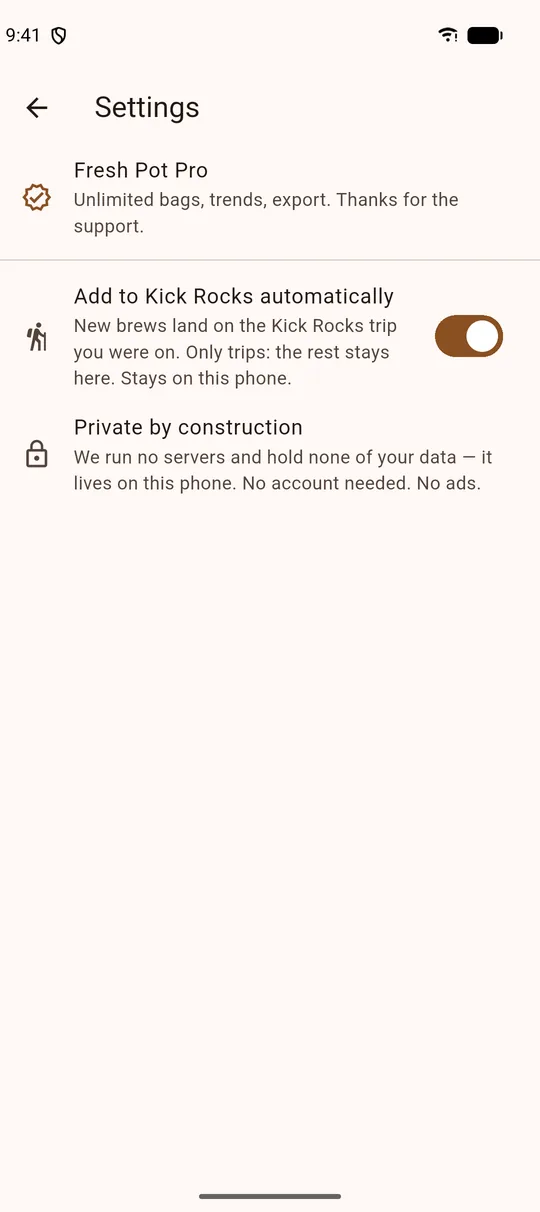
- Automatically: with Add to Kick Rocks automatically on (Settings, gear icon on the Beans tab), each new brew is handed to Kick Rocks quietly as you save it. Turn the switch off to stop.
- By hand: open a saved brew and tap the hiking icon (Send to Kick Rocks) in the top bar.
- What's handed over is the coffee and roaster, the method, ratio and your rating, and the time. It goes straight from one app to the other on your phone; nothing goes over the internet.
- Kick Rocks can open the cup back in Fresh Pot. If you've deleted it since, Fresh Pot says the brew isn't there anymore.
15. Free vs. Pro
Fresh Pot is free for your first five bags, with the full journal and brew log for each of them, forever. Nothing you've written is ever locked away: if Pro ends, every bag and note stays readable and editable.
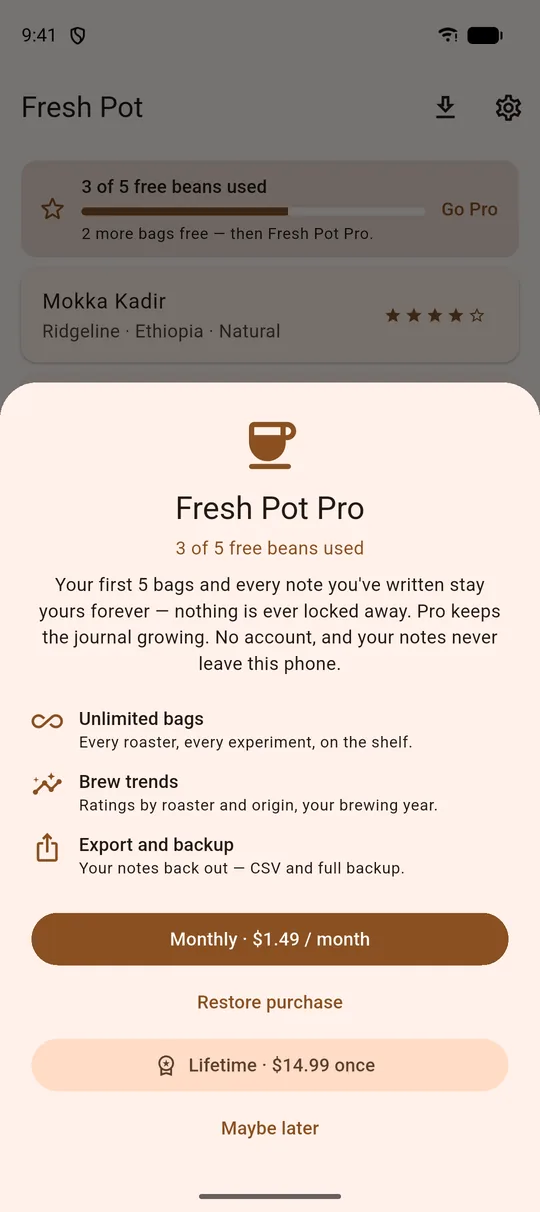
| Free | Pro | |
|---|---|---|
| Bags | 5, counted as you add them | Unlimited |
| Brews, gear, ratings, notes, photos | Yes, for every bag | Yes |
| Dial-in card, Brew it again | Yes | Yes |
| Spreadsheet import | Up to your free bags | Yes |
| Bag-label scanning | — | Yes |
| Trends | — | Yes |
| CSV export and full backup | — | Yes |
| Restore a backup | Yes | Yes |
Fresh Pot Pro is $1.49 a month or $14.99 once (US prices; the price shown in the app at purchase is what you pay). Open it from the Go Pro button on the free-tier counter, from Settings → Upgrade to Fresh Pot Pro, or from the Trends tab. Bought it before? Tap Restore purchase on the same sheet.
Deleting a bag doesn't give back a free slot: a bag is tasting history, not a slot to recycle. The counter shows exactly where you are.
Still stuck? See Help & troubleshooting or email hello@code-cowboys.com.